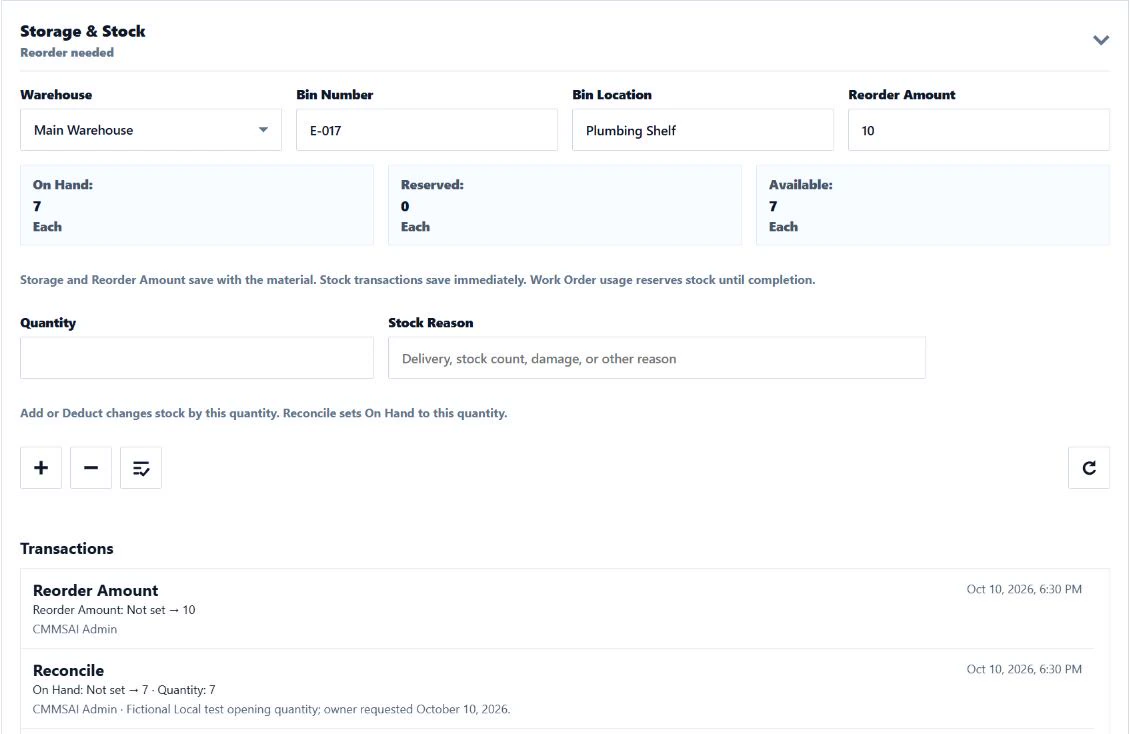
Know what is available
On Hand is the physical stock count. Reserved is the quantity allocated to work that has not been completed. Available is what remains after reservations. Previously uncounted parts show Not tracked until you reconcile an opening count.
Reserve parts for the job
Adding material usage to an open Work Order reserves the quantity. It reduces Available while leaving On Hand in place. Completing or closing the work consumes that stock. If the job is reopened, the stock returns to On Hand and the material usage becomes reserved again.
Record stock movements
Use Add when stock arrives, Deduct for an adjustment out, and Reconcile to record a physical count. Include a reason so the next person can understand the change. The transaction history shows movements, actors, dates, and Work Order references where available.
See when stock needs attention
Set a Reorder Amount for each part. CMMSAI flags it when On Hand falls below that threshold, with a warning icon and subtle highlight in the list. Filter for parts needing reorder, out-of-stock items, or parts with reservations. The flag helps your team decide what to purchase.
Keep suppliers with the parts
Select a supplier on the Material record. Suppliers have their own editable name, address, contact, phone, email, and notes. Store warehouse and bin details with the part, and print Code 39 or QR labels from the filtered Materials list.
See what the job used and cost
Keep a unit cost with each part and record the quantity used on the Work Order. Review material cost alongside labor on the job, or use Reports to compare material entries across matching work.